Chapters
- 1What is SvgTrace?
- 2Create an account
- 3Sign in
- 4Upload your image
- 5Your picture converts automatically
- 6Retrace and Modify
- 7Meet the SVG Editor
- 8Work with colour layers
- 9Edit paths and shapes
- 10Save and reopen your design
- 11Export your file
- 12Trace Orders
- 13Free account and Pro
- 14Credits
- 15Generate, Resize and Bulk Convert
- 16If something looks wrong
- 17FAQ
- 18Get help
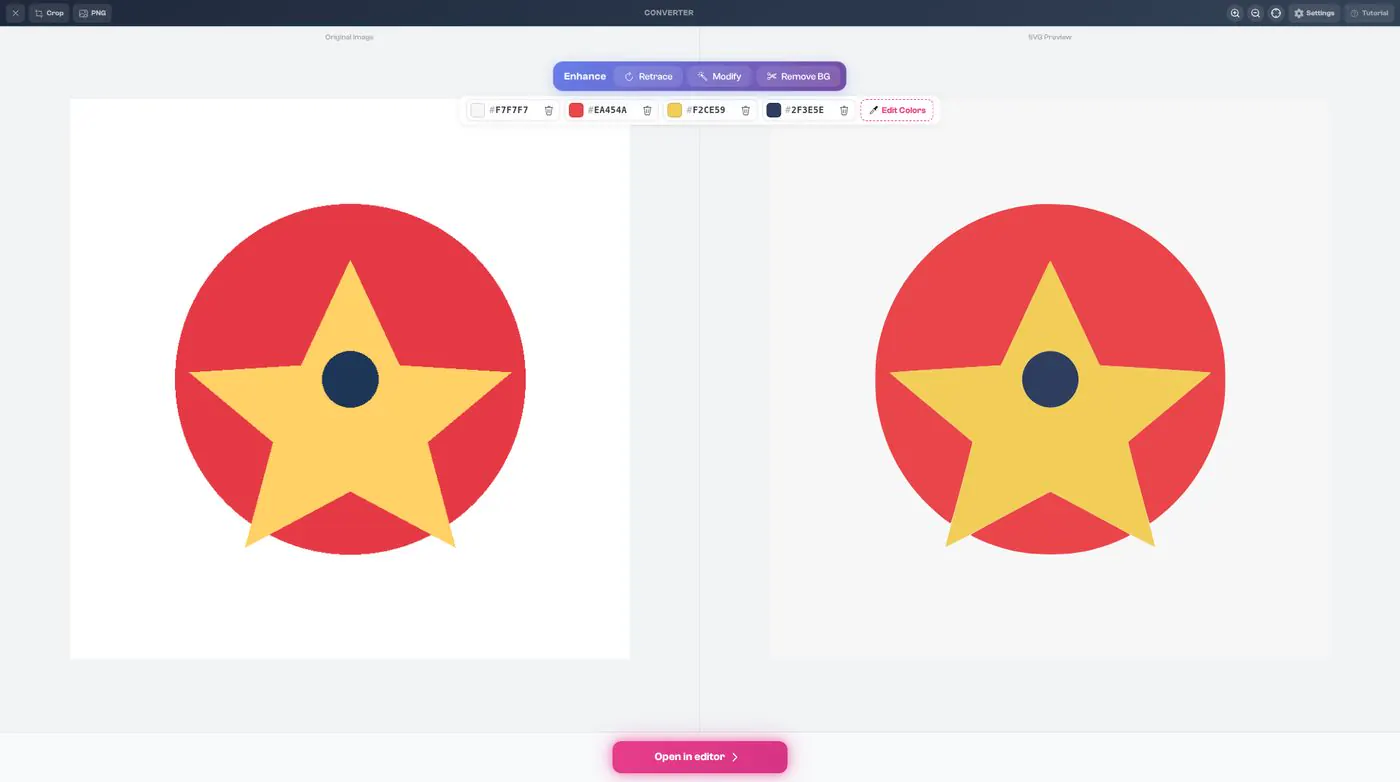
There is no Convert button to press. As soon as your picture uploads, SvgTrace shows Detecting colors… and then Converting to SVG….

When it is done, your Original Image is on the left and the SVG Preview is on the right. The colours it found are listed across the top.
To adjust the colours
- 1
To change a colour, click its colour swatch and choose a new one on the colour wheel. You can type a hex code if you want an exact colour, but you don't have to.
- 2
To drop a colour you don't need, click the bin icon next to it.
- 3
Or click Edit Colors.