Chapters
- 1What is SvgTrace?
- 2Create an account
- 3Sign in
- 4Upload your image
- 5Your picture converts automatically
- 6Retrace and Modify
- 7Meet the SVG Editor
- 8Work with colour layers
- 9Edit paths and shapes
- 10Save and reopen your design
- 11Export your file
- 12Trace Orders
- 13Free account and Pro
- 14Credits
- 15Generate, Resize and Bulk Convert
- 16If something looks wrong
- 17FAQ
- 18Get help
Retrace and Modify let you customize and make changes to your uploaded design. They are in the Enhance bar above your picture. Retrace and Modify use credits.
To change your design
- 1
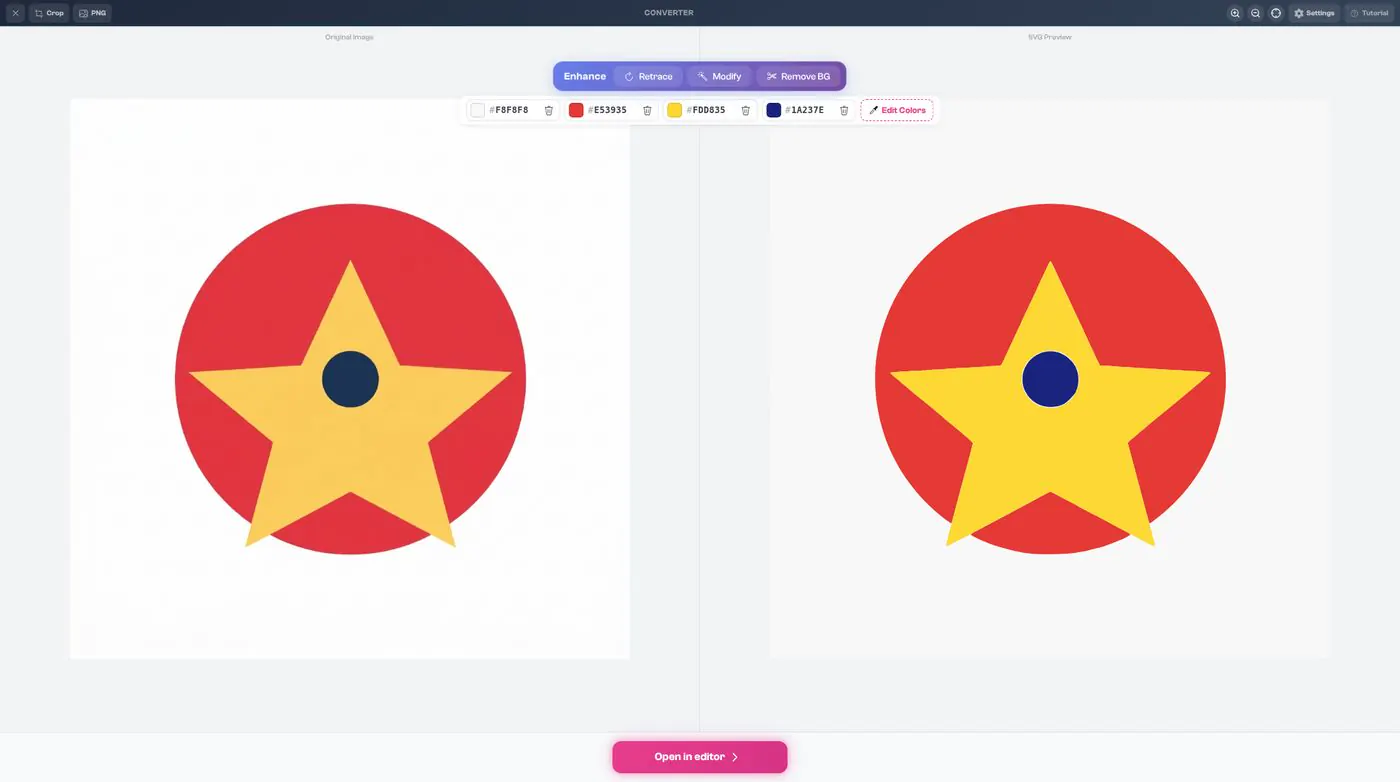
Click Retrace to redraw your picture for cleaner results.
- 2
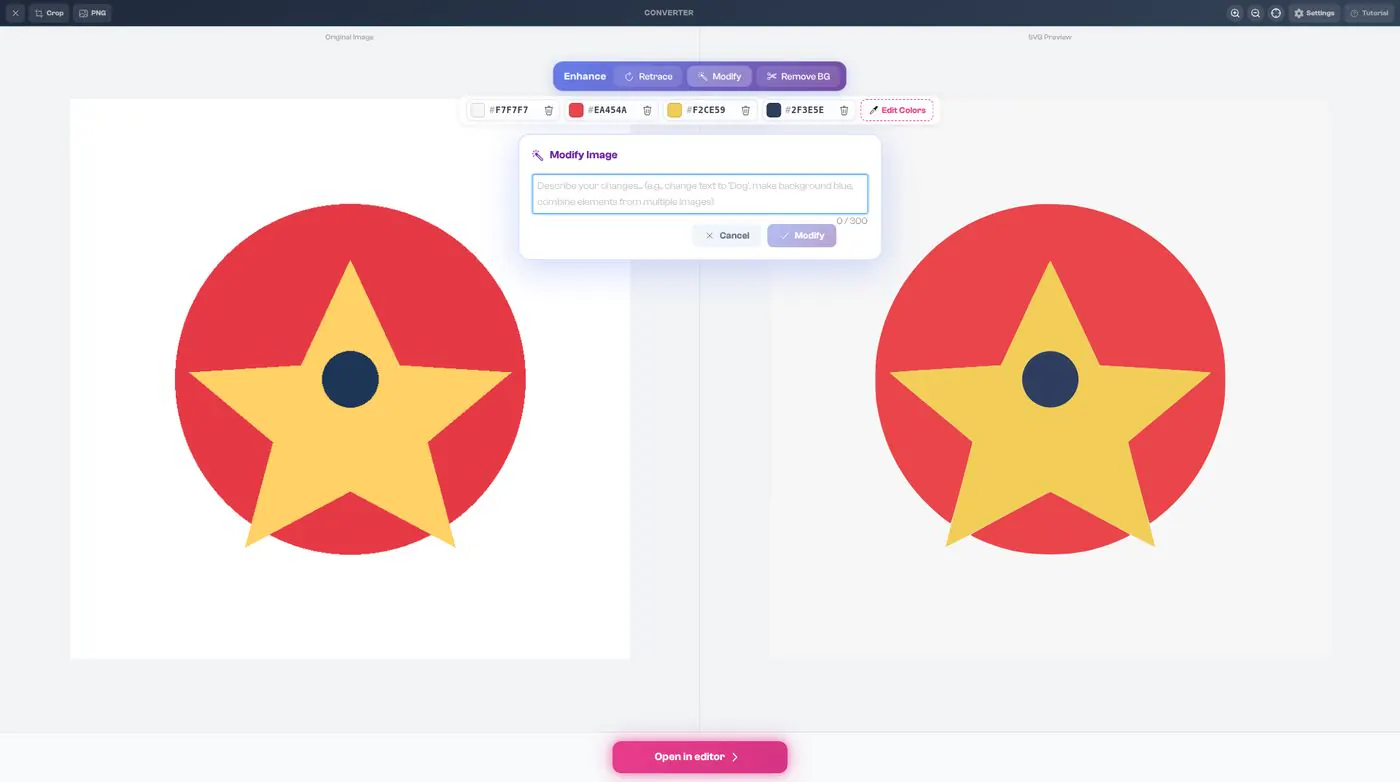
Or click Modify. In Modify Image, type what you would like changed (up to 300 characters), then click Modify. Click Cancel to close it.
- 3
To take the background away, click Remove BG.
- 4
When you're happy, click Open in editor.