Chapters
- 1What is SvgTrace?
- 2Create an account
- 3Sign in
- 4Upload your image
- 5Your picture converts automatically
- 6Retrace and Modify
- 7Meet the SVG Editor
- 8Work with colour layers
- 9Edit paths and shapes
- 10Save and reopen your design
- 11Export your file
- 12Trace Orders
- 13Free account and Pro
- 14Credits
- 15Generate, Resize and Bulk Convert
- 16If something looks wrong
- 17FAQ
- 18Get help
To export
- 1
In the SVG Editor, click Export.
- 2
Choose a File format: SVG, PNG, PDF, EPS or DXF.
- 3
Give your file a File Name, and set the Document Size. Width and height stay linked.
- 4
To get each layer as its own file, tick Export each layer as separate file (ZIP).
- 5
Click Download SVG. The button changes with the format, for example Download PNG.
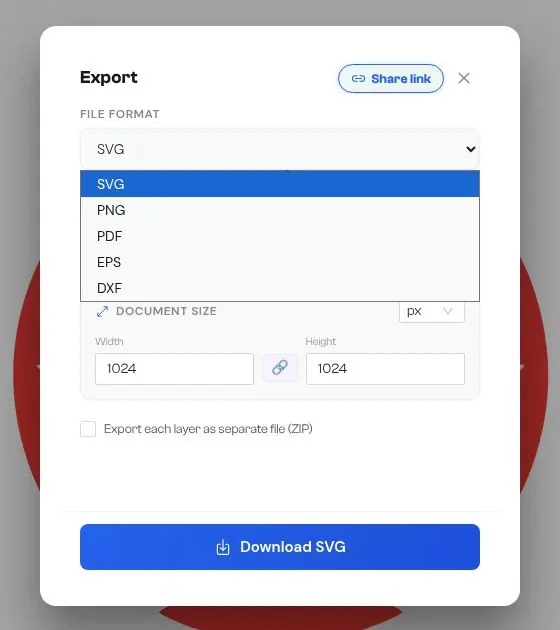
You can also click Share link to copy a link to your design.